Dokumentacja Mail Messages Easy
Ten moduł znacząco poprawia użyteczność systemu poczty Odoo, czyniąc go bardziej przyjaznym. Należy pamiętać, że niektóre funkcje mogą nie być dostępne dla wybranej wersji Odoo.
Contact usGłówne funkcje
- View all messages in one view.
- Message preview pane [Pro Version].
- Generic Conversation model for handling unresolved messages.
- Reply, quote reply to message.
- "Email Mode": send messages as regular email using To, Cc and Bcc fields [Pro Version].
- Move messages between different records [Pro Version].
- Print messages.
- Move messages to and out of Trash and manage deleted messages.
- Archive/unarchive messages.
- Edit messages and internal notes.
- Show original From, To, Cc and Subject fields of incoming messages [Pro Version].
- Hide/show notifications, internal notes and messages in chatter [Pro Version].
- Receive messages directly to catchall.
- Smart notifications: don't send email notification for incoming messages if recipient has already received the original email.
- Limit number of quoted messages.
- Show Lost messages [Pro Version].
Ogólna konfiguracja aplikacji
To configure the module go to Messages → Settings → General Settings. Following settings are available there:
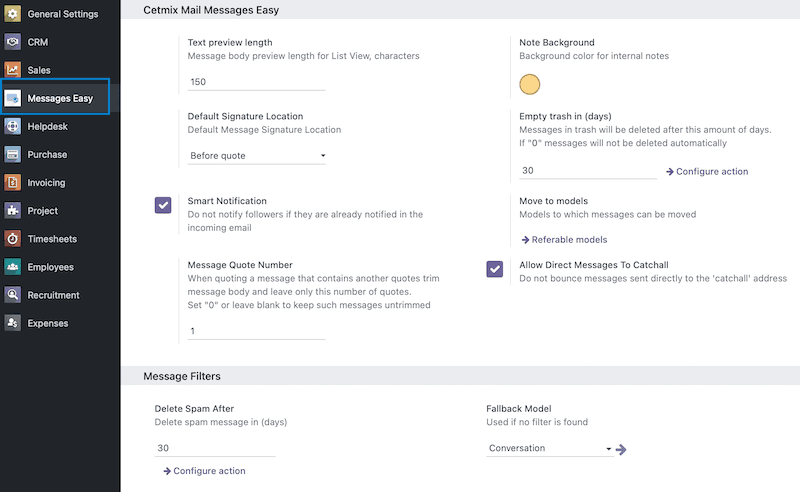
- Text preview length: Defines the number of symbols that will be shown on the message tile in the message list view.
- Note background: This color is used to distinguish messages from internal notes. Which are also stored in the mail.message Odoo model.
- Default Signature Location: By default Odoo places user signature at the end of the message. However this is not convenient when messages are quoted. This setting allows to put user signature before quoted message when replying with quote.
- Empty trash in [days]: Messages that are moved in "Trash" will be finally deleted after this number of days. Set value to "0" to keep those messages forever.
- Smart Notification: When a message is posted to a record in Odoo by default all record followers are notified. This is valid for incoming messages too. For example you send a message with [email protected] and [email protected] to some Odoo instance. Where both of those are saved as partners and are followers of some record. By default each of them will receive two same messages:
- Direct email because they are message recipients.
- Mail notification from Odoo because they are followers of an Odoo record.
When "Smart Notification" is enabled this module will prevent Odoo from sending mail notification in case its recipients have already received a direct email.
- Move to models [Pro Version]: Allows to define which models are selectable in the message move wizard.
- Message Quote Number: Message body can become really huge and heavy when a thread is replied many times with quote. This setting provides a solution for that allowing to limit the number of previously quoted messages in the quoted body. Currently only "blockquote" tag is parsed.
- Allow Direct Messages To Catchall: By default Odoo will bounce any message that it sent to catchall@ address. This setting allows to override this behavior and process such messages same as any others.
- Delete Spam After: Number of days spam messages will be deleted after. This feature is added by the Message Filter module. Message Filter module.
- Fallback Model: If no message filter can be applied to an incoming message this message will be posted to a new record of the selected model. This feature is added by the Message Filter module. Message Filter module.
Ustawienia użytkownika
This app has some feature that need to be configured at the user level. To configure them go to Settings → General Settings → Manage Users and open a user form.
Following settings are available:
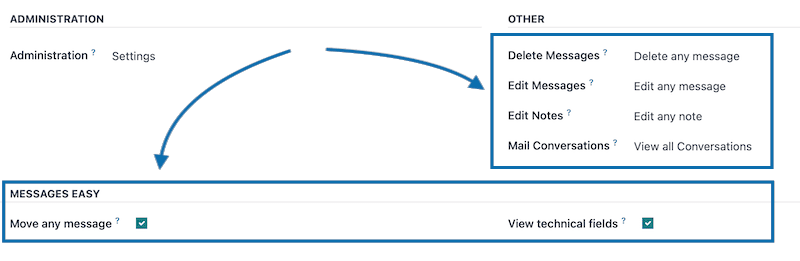
- Delete Messages:
- No option selected: Cannot delete messages.
- Deleted own messages: Can delete messages this user is author of.
- Deleted any message: Can delete any message.
- Edit Messages:
- No option selected: Cannot edit messages.
- Edit own messages: Can edit messages this user is author of.
- Edit any message: Can edit any message.
- Edit Notes: Internal notes are stored in the same model as messages. However they require separate access rule settings:
- No option selected: Cannot edit internal notes messages.
- Edit own notes: Can edit notes this user is author of.
- Edit any note: Can edit any note.
- Mail Conversations: Defines access to Conversations which are located in "Messages → Conversations" menu.
- No option selected: No access to Conversations.
- View own Conversations: Has access to Conversations where this user is author or participant.
- View all Conversations: Has access to all Conversations.
- Move any message: Allows to move messages between records [Pro Version]. You need to enable "Developer mode" to access this setting.
- View technical fields: Activates the "Technical" page of the message form with technical fields on it. You need to enable "Developer mode" to access this setting.
Profil użytkownika
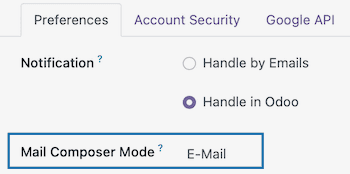
- Mail Composer Mode: Default message composition mode used in the message composer. message composer.
Wskazówki konfiguracyjne Odoo
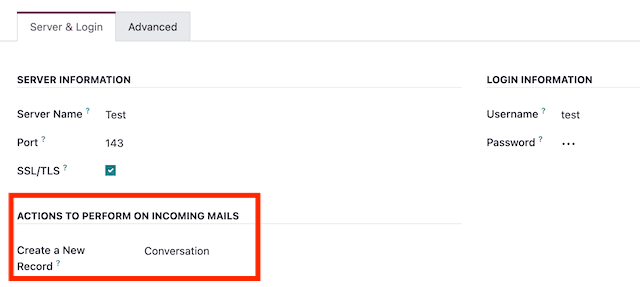
You can configure a so-called 'Fallback model' which will be used in case Odoo cannot process an incoming message. If an incoming message cannot be routed it will be posted to a new record of this model. For example you can use Conversation model so each unresolved incoming message will create a new Conversation.
To do this:
- Go to Settings → General Settings, scroll down to the Developer Tools section and click Activate the developer mode.
- Go to Settings → Technical → Email → Incoming Mail Servers and open a mail server.
- In the Create a New Record field select a model that will be used to post unresolved incoming messages.
Menu
This module adds a new root Messages menu with the following submenus:

- Messages: Displays message list. In [Pro Version] it also features a preview pane which allows to preview messages instantly without opening them.
- Shared Inbox filter is activated by default. The following predefined filters are available in the Filters menu:
- Shared Inbox: Shows incoming messages current user has access to. This means that user will see messages posted to all records this user has access to.
- Private Inbox: Shows incoming messages in which current user is a direct recipient (added in "To" field).
- Sent by Me: Shows messages where current user is the author (added in "Author"/"From" field).
- Messages Only: In Odoo both messages and internal notes are stored in the same model. This filter shows only messages and hides internal notes.
- Internal Notes: Shows internal notes only and hides messages.
- Author not detected: if Odoo cannot find a partner which matches incoming message author new message will be created with empty "Author" field. Only "From" address will be written down. This filter will show such messages.
- Conversations: Records of the Conversation model. Conversation model is a generic model that is used to keep messages that cannot be assigned to any other model. You can later move messages that are posted to a Conversation using Move button [Pro Version]. Note: this menu has limited access that is configured in user settings. user settings.
- Drafts: Messages saved as draft. This feature is added by the Mail Messages Draft module. Mail Messages Draft module.
- Lost [Pro Version]: Shows messages that doesn't belong to any record in Odoo. This can happen due to some internal system errors. Important: these are messages that are already inside Odoo. Not the new messages that are being received. If you want to route unresolved incoming messages you should use incoming mail server configuration for that. Check Odoo configuration hints for how to do it. Odoo configuration hints.
- Compose new: Compose new message from scratch. This feature is added by the Mail Messages Draft Pro module. Mail Messages Draft Pro module.
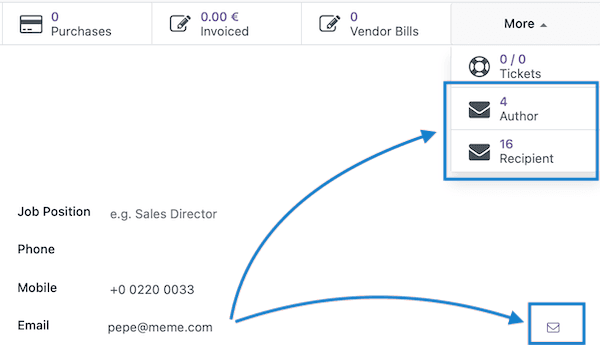
- Contacts: Contact form has the following features added:
- "x Author" smart button: opens all messages this partner is author of. Button is shown only if such messages exist.
- "x Recipient" smart button: opens all messages this partner is recipient of. Button is shown only if such messages exist.
- mail icon next to partner email: When clicked Odoo message composer is opened with selected partner added as recipient.
- Archived: Archived messages are located here.
- Spam: Messages that are marked as 'spam'. This feature is added by the Message Filter module. Message Filter module.
- Trash: Deleted messages are located here.
- Settings: General App settings.
Akcje
Following actions are available in the "Action" menu and available as list view buttons:
- Archive: Archive selected messages.
- Unarchive: Unarchive selected messages.
- Move: Move selected messages to another record [Pro Version]. Check the Message move wizard section for more details. Message move wizard.
- Mark read: Mark selected messages as read.
- Star/Unstar: Mark selected messages as "Starred" or unmark the starred ones.
- Delete: By default Odoo deletes messages permanently. This module will mark them as deleted instead. Deleted messages are available in the "Trash" menu. To remove a message permanently you need to go to the "Trash" menu, select that message and delete it again.
- Undelete: Removes deleted mark and moves message(s) back from "Trash" to "Messages" menu. Works in the "Trash" menu only.
- Mark spam: Marks selected messages as "Spam". This feature is added by the Message Filter module. Message Filter module.
- Unmark spam: Removes "Spam" mark from selected messages and moves them back to "Messages" menu. Works only in the "Spam" menu. This feature is added by the Message Filter module. Message Filter module.
Drukuj
Following reports are added:
- All fields: Will print selected messages including all message fields: "From", "Author", "Recipients", "Subject", "Body".
- Body only: Will print only message body of selected messages. This report is useful to print documents that are sent as plain emails. Such as payment receipts.
Formularz wiadomości
Following fields are located on the message form:
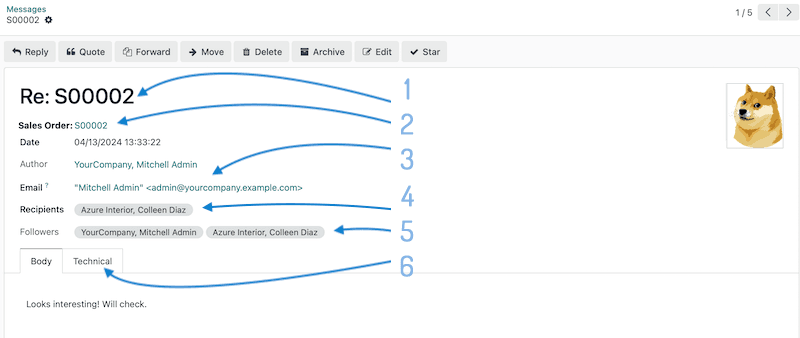
- Message subject.
- Record this message is posted to.
- Message author and author's email. In case message author is not set only "Email" field will be displayed.
- Message recipients.
- Followers of the record this message is posted to.
- This tab contains message technical fields that can be used for debugging. This tab is displayed only if user has access to technical fields configured in the user settings. user settings.
Following additional actions can be done using buttons in the message form view:
- Reply: Opens message compose wizard in reply mode with "Re:" prefix added before subject.
- Quote: Opens message compose wizard in reply mode with original message text added as quote and "Re:" prefix added before subject.
- Forward: Opens message compose wizard in reply mode with original message text added as quote and "Fwd:" prefix added before subject.
- Edit: Edit message body. Edited message will be marked with an "Edit" icon and "Edited by on" note on the message form.
Chatter
funkcja wersji
 funkcja wersji
Following features are available in the chatter:
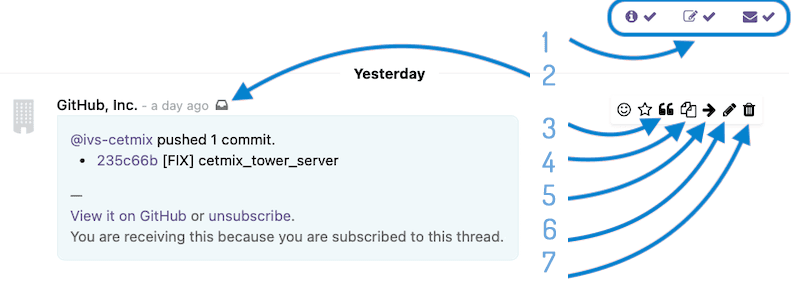
- Hide/show notifications, internal notes or messages.
- Show detailed information including "From", "To", "Cc" and "Subject" fields.
- Reply message with quote.
- Forward message.
- Move message to another record.
- Edit message or note.
- Move message or note to "Trash".
Edytor wiadomości
Following new features are available in the message composer:
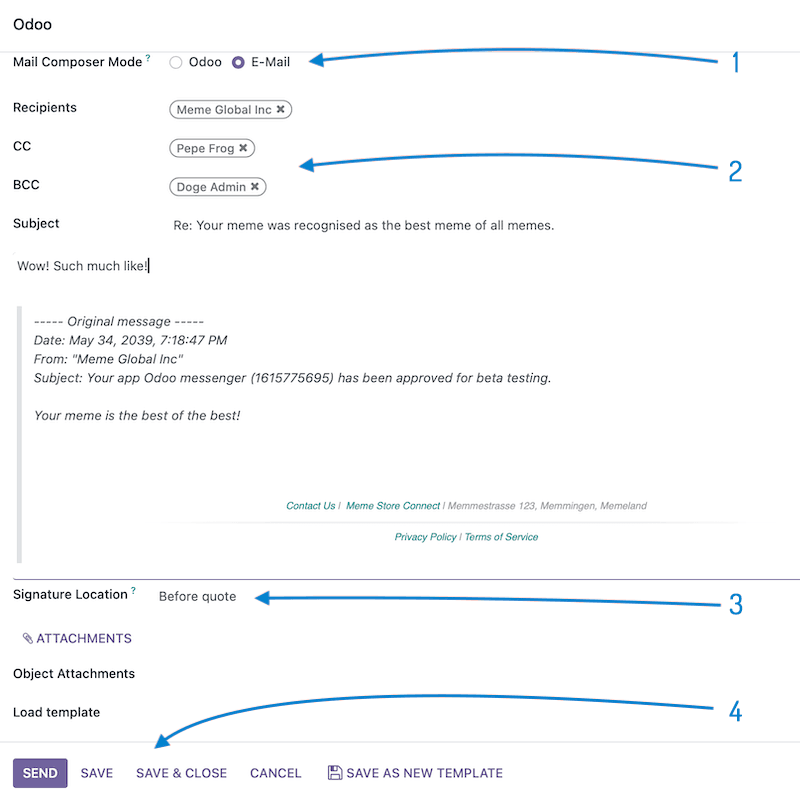
- Mail Composer Mode [Pro Version]:
- Odoo: regular Odoo mode. Message will be sent to selected recipients. Followers will be notified. Depending on recipients and followers types (Internal User/Portal/External) Odoo may generate several messages with different layout for each type.
- Email: message will be sent as a regular email. Only partners added in Recipients, CC and BCC fields will be notified. Single message will be created with values populated from the composer fields. Followers will not be notified unless they are explicitly added as recipients.
- These fields are available if Email composer mode is selected [Pro Version].
- Where to place user's signature when replying with quote. Possible options: Message bottom, Before quote, No signature. Default value can be configured in the general settings. general settings.
- Save current message as draft. This feature is added by the Mail Messages Draft module. Mail Messages Draft module.
Kreator przenoszenia wiadomości
funkcja wersji
This wizard allows to move selected messages between records.
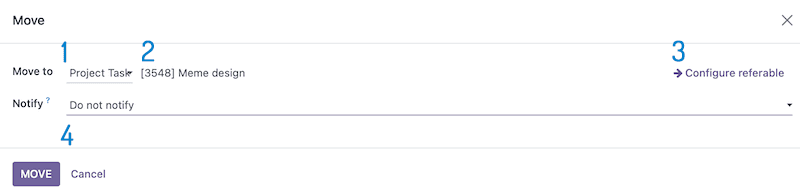
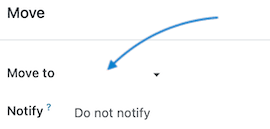
- Model to which selected messages will be moved. Important! Starting Odoo 16 design of this widget was changed by Odoo. You need to click here to select a record:
- Record to which selected message will be moved. This field will appear only after a model is selected.
- Configure which models can be selected in the wizard.
- Action to do in the destination record after message(s) are moved. Possible options:
Masz pytania lub potrzebujesz pomocy? Skontaktuj się z nami
Contact us